
Issue: SQL Server service is stopped and it will not start even if you tried from SQL Server Configuration Manager or Services.msc.
Cause:This is caused by the new way Windows 11 handles disk sector sizes especially for NVMe storage drives so that it is able to increase the sector size to more than 4kb(4096bytes). According to Microsoft, “During service startup, SQL Server begins the database recovery process to ensure database consistency. Part of this database recovery process involves consistency checks on the underlying filesystem before you try to open system and user database files. Some new storage devices and device drivers expose a disk sector size greater than the supported 4-KB sector size. When this issue occurs, SQL Server is unable to start due to the unsupported file system as SQL Server currently supports sector storage sizes of 512 bytes and 4 KB.“
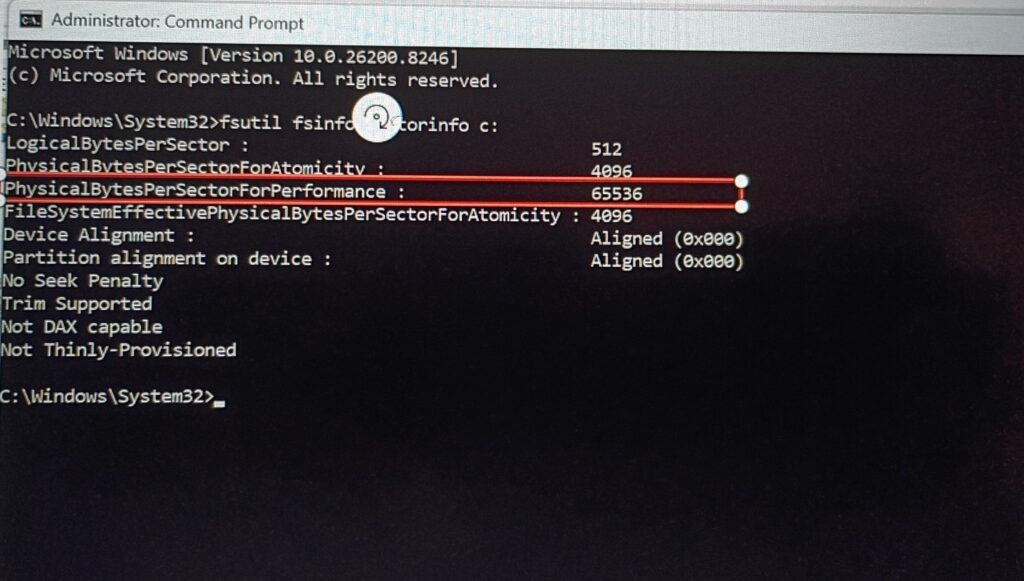
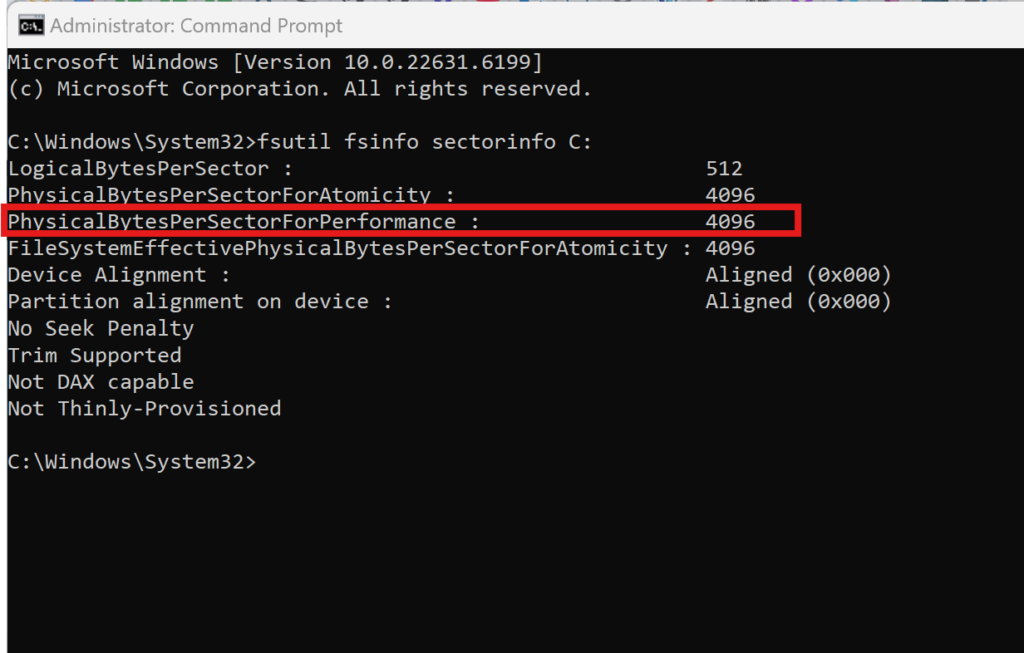
Solution: Run CMD as administrator and run this command fsutil fsinfo sectorinfo <drive letter>:. So if the installation is being done on the C-drive then the command would be: fsutil fsinfo sectorinfo C:
Wrong disk sector (anything greater than 4096 bytes)
Correct disk sector
To resolve this, run this script in CMD to add “ForcedPhysicalSectorSizeInBytes” to the registry with a value of “*4095“;
REG ADD “HKLM\SYSTEM\CurrentControlSet\Services\stornvme\Parameters\Device” /v “ForcedPhysicalSectorSizeInBytes” /t REG_MULTI_SZ /d “* 4095” /f
Once this has been done, if Microsoft SQL Server was already installed, uninstall all the components and then restart the computer to set the “PhysicalBytesPerSectorForPerformance” to 4096. After that, you can reinstall SQL server and the SQL Server service should work now.